

What Instagram can and can’t share to Facebook
Instagram has two ways to put a post on Facebook, both from the Instagram app on a phone:
- Per post. Before you share, tap Also share on… and switch on your Facebook profile or Page.
- Automatically. In Accounts Center → Connected experiences → Sharing across profiles, pick the Instagram account to share from and the Facebook account to share to, then switch on Your Instagram posts (reels and stories have their own switches).
Both end on a Facebook profile or Page. Neither offers a group, and there is no other Instagram setting that does. People searching for an “Instagram Facebook groups integration” usually hope a tool fills the gap, but Meta removed group publishing from its API on 22 April 2024, so Zapier, Make and the schedulers can’t post into groups either. Which Facebook groups integrations still work lists what is left.
That leaves three routes, all with a step on the Facebook side.

Route 1: share the Facebook copy to the group
- Make sure the Instagram post also went to your Facebook profile or Page (per post or automatically, as above).
- On Facebook, open that post.
- Click Share, choose Group, pick the group, add a line of your own and click Post.
Members see your post as a shared card. Likes and comments stay with the original on your profile or Page. It is a good fit when the post is about your business and the group knows your Page. Some groups decline shared posts and want original content, so check the rules first.
Route 2: paste the Instagram link
In the Instagram app, tap the share icon under the post and Copy link. In the group’s post box, write a line of context and paste the link. Facebook usually builds a preview card from it.
It takes ten seconds, but the card is small, and anyone who taps it leaves Facebook to view the post. Groups that ban outside links, or put posts with links into approval, treat an Instagram link like any other link. If your post goes pending after you add one, why your Facebook group post is pending explains what happened.
Route 3: post the photos and caption in the group
Save the photos or video from your phone, open the group, create a new post, add the media and paste the caption. Change hashtag-heavy Instagram captions into something that reads well in a group: two or three hashtags at most, and a question or a clear next step instead.
This is usually the route that gets the most attention. The photos fill the post at full size, people react without leaving Facebook, and the post doesn’t depend on a link card. If you want people to follow you on Instagram, put your profile link in the first comment, where the group allows links. How to post links in Facebook groups covers when that works.
The same logic applies to video from YouTube; sharing YouTube videos in Facebook groups compares a native clip with a link.
Getting it into many groups
One group by hand is quick. Ten or forty groups every time you post on Instagram is where an extension helps. MultiGroupPoster is a Chrome extension that posts from your own Facebook session to the groups on your list, one at a time with a pause between them. It doesn’t post to Instagram or read your Instagram account; it handles the Facebook side of both routes:
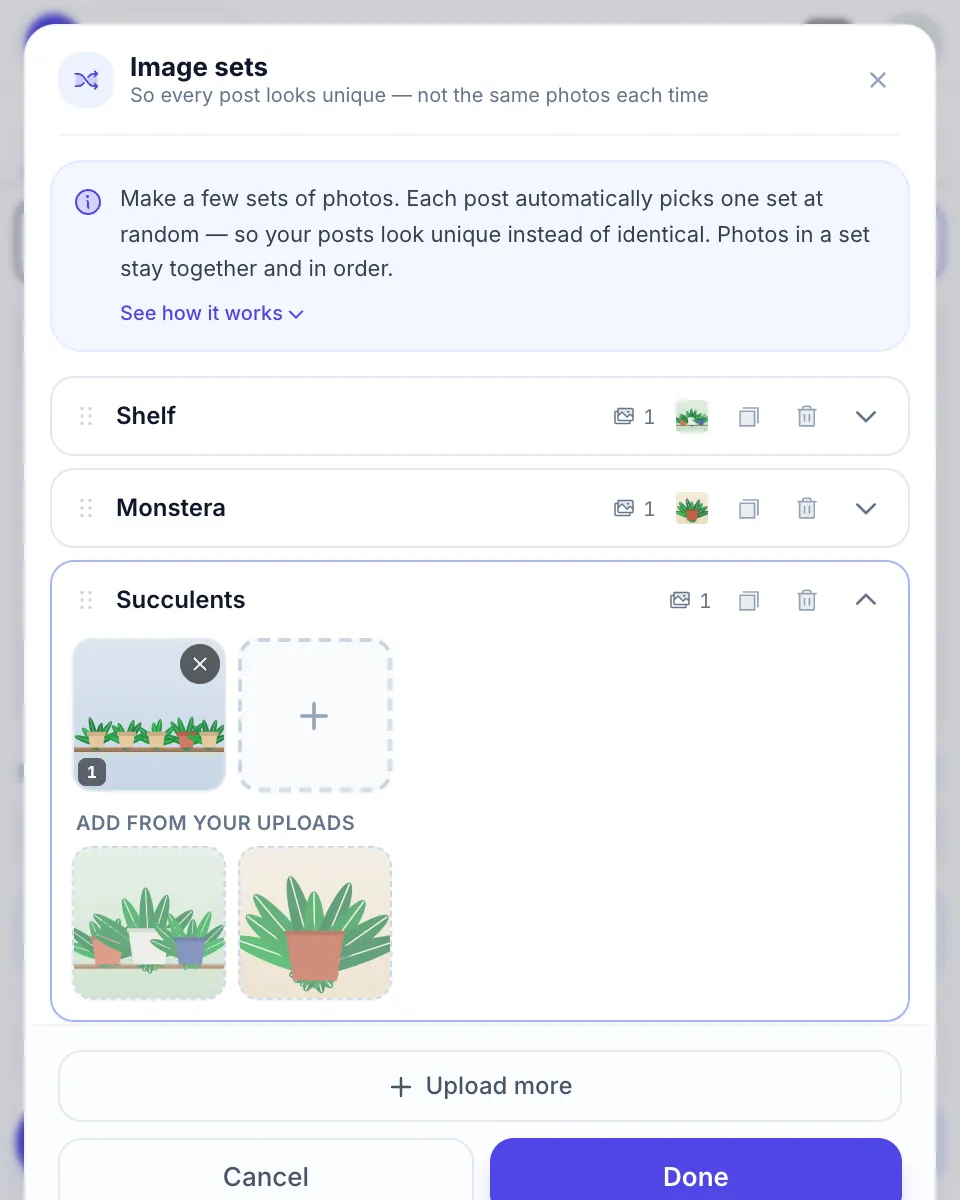
Route 3, in every group. Add the same photos or video to the editor, paste the caption, pick a group list and publish now or on a schedule. Spintax gives each group a slightly different wording, and Image sets can rotate photos so the groups don’t all get the same picture. A first comment can carry your Instagram link.
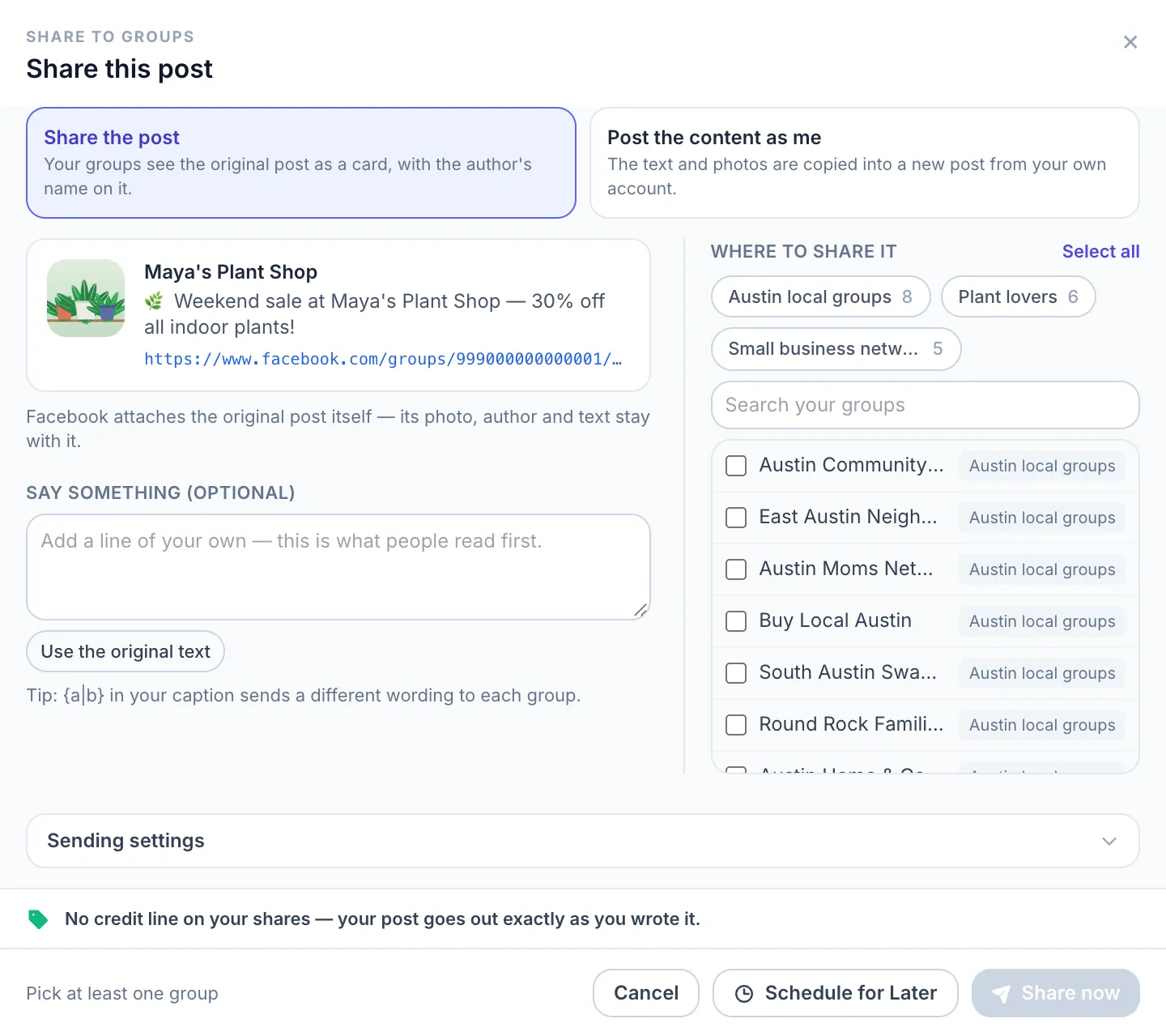
Route 1, in every group. Once the Instagram post is on your Facebook Page or profile, the extension adds a Share to groups button next to Facebook’s own Share button under the post. Choose Share the post to send the shared card, tick your lists or groups, and click Share now or schedule it.
Keep the pace sensible. The same content in many groups at once is exactly the pattern Facebook watches for, so leave a few minutes between groups, vary the text and don’t post in the same group every day. How to share one Facebook post to multiple groups goes deeper into the share route.
Group rules for Instagram content
- Self-promotion. “Follow me on Instagram” is promotion. Many groups allow it only on a promo day or in a weekly thread. Facebook group promotion rules shows how to read the rules quickly.
- Shared posts. Some groups decline shares and want posts written for the group.
- Links. Groups that ban links will remove or hold a post with an Instagram link in the body.
- Fit. A reel that worked on Instagram may need a different first line for a local or niche group. Lead with what the members care about.
FAQ
Can I share an Instagram post directly to a Facebook group?
No. As of October 2026, Instagram’s Also share on option and its automatic sharing in Accounts Center go only to a Facebook profile or Page, not to groups. To get the post into a group, share the Facebook copy to the group, paste the Instagram link, or post the same photos and caption in the group yourself.
Is there an Instagram and Facebook groups integration?
Not from Meta. Accounts Center connects Instagram with Facebook profiles and Pages only, and Meta removed group publishing from its API on 22 April 2024, so tools like Zapier can’t post to groups either. What works is sharing the Facebook copy of the post, or a browser extension that posts the same content in your groups.
What is the best way to share Instagram content in Facebook groups?
Upload the photos or video in the group with the caption as a new post. Native media is shown bigger than a link and keeps people on Facebook, so it usually gets more attention. Put the Instagram link in the first comment, where the group’s rules allow links, for people who want to follow you there.
How do I share an Instagram reel to a Facebook group?
Share the reel to Facebook first: switch on sharing to Facebook when you post it, or turn on automatic reel sharing in Accounts Center. Then open the reel on Facebook, click Share and pick Group. Pasting the reel’s Instagram link into the group also works, but it sends people off Facebook to watch.
Can MultiGroupPoster post to Instagram?
No. MultiGroupPoster posts to Facebook groups, and to the feeds of Facebook Pages you manage. It doesn’t post to Instagram or read your Instagram account. You can use it to put the same photos and caption from an Instagram post into many Facebook groups, or to share the Facebook copy of that post to your groups.
Instagram content, every Facebook group. Add MultiGroupPoster to Chrome: 6 free posts to try (one-time), no credit card.