

What auto moderation means in a Facebook group
There are no outside apps for this. Meta removed the Groups API on 22 April 2024, so every tool that claims to moderate a group from outside Facebook has no official way in (what changed in 2024). Automatic moderation happens inside the group, through two built-in features:
- Admin Assist acts: it approves, declines, removes, suspends and publishes on its own.
- Moderation alerts notify: keyword alerts and engagement alerts tell admins and moderators when to look.
This guide is the setup walk-through for the first one. If you want the full list of tools and how they fit together, start with Facebook group moderation tools and come back here to configure them. Menu names below come from Meta’s Help Center, checked on 15 October 2026; a few options are still rolling out and may not appear in every group.
Step 1: open Admin Assist
- On a computer, go to facebook.com/groups and select your group.
- Click Admin Assist in the left menu. In the app, tap Manage first, then Admin Assist.
- You’ll see sections such as Manage people, Manage posts, Manage comments and, in public groups, Manage requests, each with an Add button next to an action.
Each Add opens a choice between a preset and Create your own. Presets are the fastest start; you can edit them later with the pencil icon, then Edit, then Save criteria.

Step 2: screen join requests automatically
Most spam is cheaper to stop at the door. Under Manage people:
- Click Add next to Approve member request if.
- Choose Membership questions, so people who answered get in without waiting for you. In a public group the same rule sits under Manage requests as Approve participant if, with Participation questions.
- Click Add to Admin Assist.
- Click Add next to Decline member request if and pick criteria such as a brand-new account. Use this carefully: genuine newcomers sometimes have new accounts too.
The approve rule is only as good as your questions. If they are easy to fake, it lets bots in faster. Our membership question examples give you questions that need a real answer.
Step 3: decline spam posts and comments
This is the rule most admins want when they search for auto moderation:
- Under Manage posts, click Add next to Decline incoming post if.
- Select the Spam posts preset.
- Under Manage comments, click Add next to Decline comment if.
- Select the Spam comments preset.
- Click Add to Admin Assist.
Declined posts don’t reach the group. Separately, Facebook puts content it thinks is spam in the Potential spam folder in your admin menu, where you click Decline or Publish. Publishing the ones that are not spam helps Facebook’s filter learn. Comment rules get their own guide: how to moderate Facebook comments.
Step 4: block links to sites you name
Link-drops are the most common rule break in business groups. Admin Assist can decline posts and comments that link to a specific site, and it can tell the author why or block them.
- Click Add next to Decline incoming post if (and again next to Decline comment if).
- Choose Create your own and add the sites you want to stop, such as a competitor, an affiliate network or a known scam domain.
- Turn on the option to notify the author with the reason, so honest members learn the rule.
- Save.
The Create your own menus in many groups offer more criteria about the post and its author, for example its length, photos, reshared content, the author’s account age or how long they have been in the group. The exact options differ between groups and change over time, so read what yours shows rather than relying on a list from another admin.
Step 5: handle reported and heated posts
Admin Assist can manage conflict for you:
- Remove posts reported a set number of times by members.
- Turn off comments on posts that were reported or that Facebook expects to be contentious.
- Act on false information: posts that independent fact-checkers rated false.
For keyword lists, use Moderation alerts in the left menu: click Settings, then Create next to Keywords. There is no limit on how many keywords you add. Engagement alerts fire when a post or comment passes a number of comments, replies or reactions you choose within one hour, which is your early warning for a thread turning into a fight.
Step 6: suspend repeat offenders automatically
- Under Manage people, click Add next to Suspend person if.
- Keep the preset, or click See more options and choose how many removed posts or comments in the past 24 hours trigger a suspension.
- Click Add to Admin Assist.
A suspended member can’t post, comment or react for the time set, and sees that the next time they visit. One detail from Meta’s help: if they have additional Facebook profiles already in the group, those can still take part; profiles not yet in the group can’t join until the suspension ends.
Step 7: welcome posts and recurring posts
Admin Assist also publishes for you:
- Publish a welcome post creates a regular post that tags new members, at the rate you choose, for example weekly.
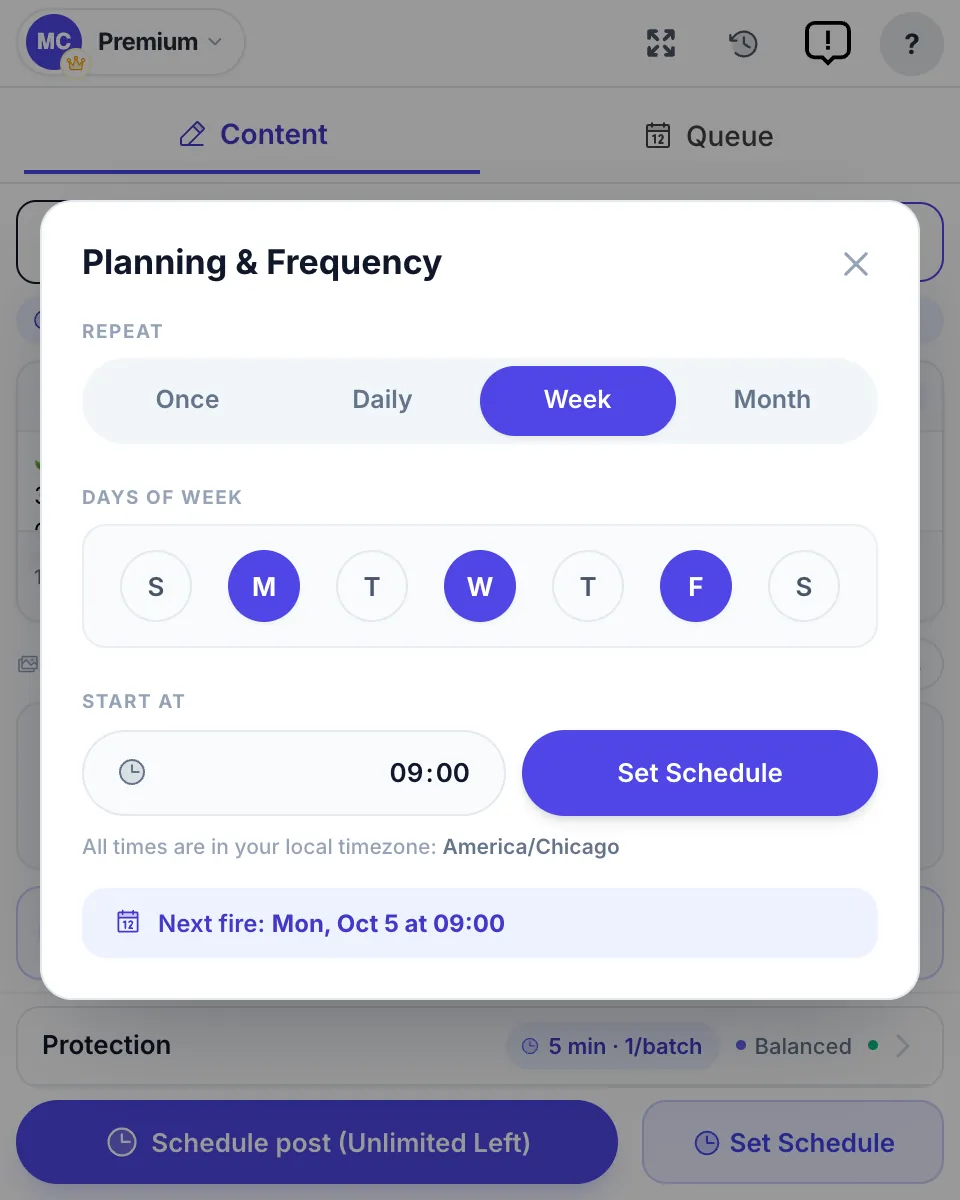
- Publish a custom post repeats any post daily, weekly or monthly. Use it for a rules reminder, a weekly promo thread or an introductions thread.
Both appear in Scheduled posts 24 hours before they go out, where the admin who set them up can edit or delete them. Other admins have to delete the rule and add it again to change it. For wording, see welcome message examples.
If you run several groups, Facebook’s recurring posts work one group at a time. A posting tool such as MultiGroupPoster can send the same weekly thread to all of them on a schedule from your own browser. It does not moderate anything; it only saves the copy and paste.
Step 8: automated approval of pending posts
If your group uses post approval, Admin Assist can approve some pending posts on its own:
- Click Settings at the top of Admin Assist.
- Turn on the toggle next to Pending posts, and in public groups Participant requests if you want those too.
It only decides when Meta’s systems are very confident, based on the author’s history, spam signals, the content and your past decisions. Everything else stays in your queue. If the toggle is missing, either the feature hasn’t reached your group or post approval is off.
How Admin Assist decides
Three rules from Meta’s Help Center explain most surprises:
| Situation | Result |
|---|---|
| A post meets any decline criterion | Declined |
| A request meets all approve criteria | Approved |
| Something meets both an approve and a decline rule | Approved |
So stack decline rules freely, but keep approve rules short: every extra approve condition means more requests wait for you.
Your first week: test and tune
- Day 1. Add the request and spam rules only.
- Days 2 to 7. Open Activity log (top right of Admin Assist) every day. Click Undo on anything wrong. Meta says Admin Assist learns from what you reverse.
- Day 3. Check Potential spam and Pending posts too, so you see what the rules missed.
- Day 7. Add the link, conflict and suspension rules.
- Every month. Delete rules that never fire and tighten the ones that let spam through.

A starter setup for three kinds of group
| Rule | Local or neighbourhood | Buy and sell | Business or professional |
|---|---|---|---|
| Approve request if questions answered | Yes | Yes | Yes |
| Decline brand-new accounts | Yes | Yes | Optional |
| Spam posts and comments presets | Yes | Yes | Yes |
| Decline links to named sites | Scam domains | Off-platform payment sites | Competitors, affiliate links |
| Remove posts reported several times | Yes | Yes | Optional |
| Suspend after several removals in 24 hours | Yes | Yes | Yes |
| Recurring post | Weekly rules reminder | Weekly “what are you looking for” thread | Friday promo thread |
Pair the setup with five to seven clear rules (group rules templates), because Admin Assist enforces criteria, not judgement. The calls it can’t make, such as a heated debate or a long-time member breaking a rule, are still yours.
FAQ
How do I turn on auto moderation in a Facebook group?
Open the group on a computer and click Admin Assist in the left menu (in the app, tap Manage first). Under Add or edit criteria, click Add next to an action such as Decline incoming post if, pick a preset or create your own criteria, and save. Each rule works on its own, so add them one at a time.
What can Admin Assist do automatically?
Approve or decline join and participant requests, decline posts and comments that look like spam or link to sites you name, act on posts fact-checkers rated false, remove posts reported a set number of times, turn off comments on contentious posts, suspend repeat offenders and publish welcome or recurring posts.
Why is Admin Assist missing from my group?
You need to be an admin, not a moderator, and some options are still rolling out. Automated moderation, which approves pending posts on its own, also needs post approval or participant approval turned on. Try Admin Assist on a computer first, where every option appears.
Can I undo something Admin Assist did?
Yes. Open Admin Assist, click Activity log at the top right and click Undo next to the action, then Undo again to confirm. Meta says Admin Assist learns from the decisions you reverse, so check the log daily for the first week after a change.
Does Admin Assist approve a request if only some criteria match?
No. A request is approved only if it meets every approve criterion, while a post is declined if it meets any decline criterion. If something matches both an approve and a decline rule, Facebook approves it.
Can Admin Assist block keywords in a Facebook group?
Moderation alerts are the documented keyword tool: they notify admins and moderators about words you list, with no limit on the list. Admin Assist’s custom criteria can also decline posts by content in many groups, but the options vary, so check the Create your own menu in yours.